
Work through and track fixes
Filter findings, copy fix code, mark progress and share a summary.
The Issues tab doubles as a to-do list. This guide shows how to narrow the list, understand a single finding, track your progress and share a summary with people who do not need the code.
Narrow the list

- Search by rule name, for example
color-contrastorimage-alt, or by a note you wrote. - Severity buttons show only critical, serious, moderate or minor findings.
- Grouped shows one row per rule. Flat list shows every individual finding.
- Selecting one of the four WCAG principle boxes above also filters the list.
A good order is critical first, then serious, then whatever is most widespread.
Understand one finding
Select How to fix on any row.
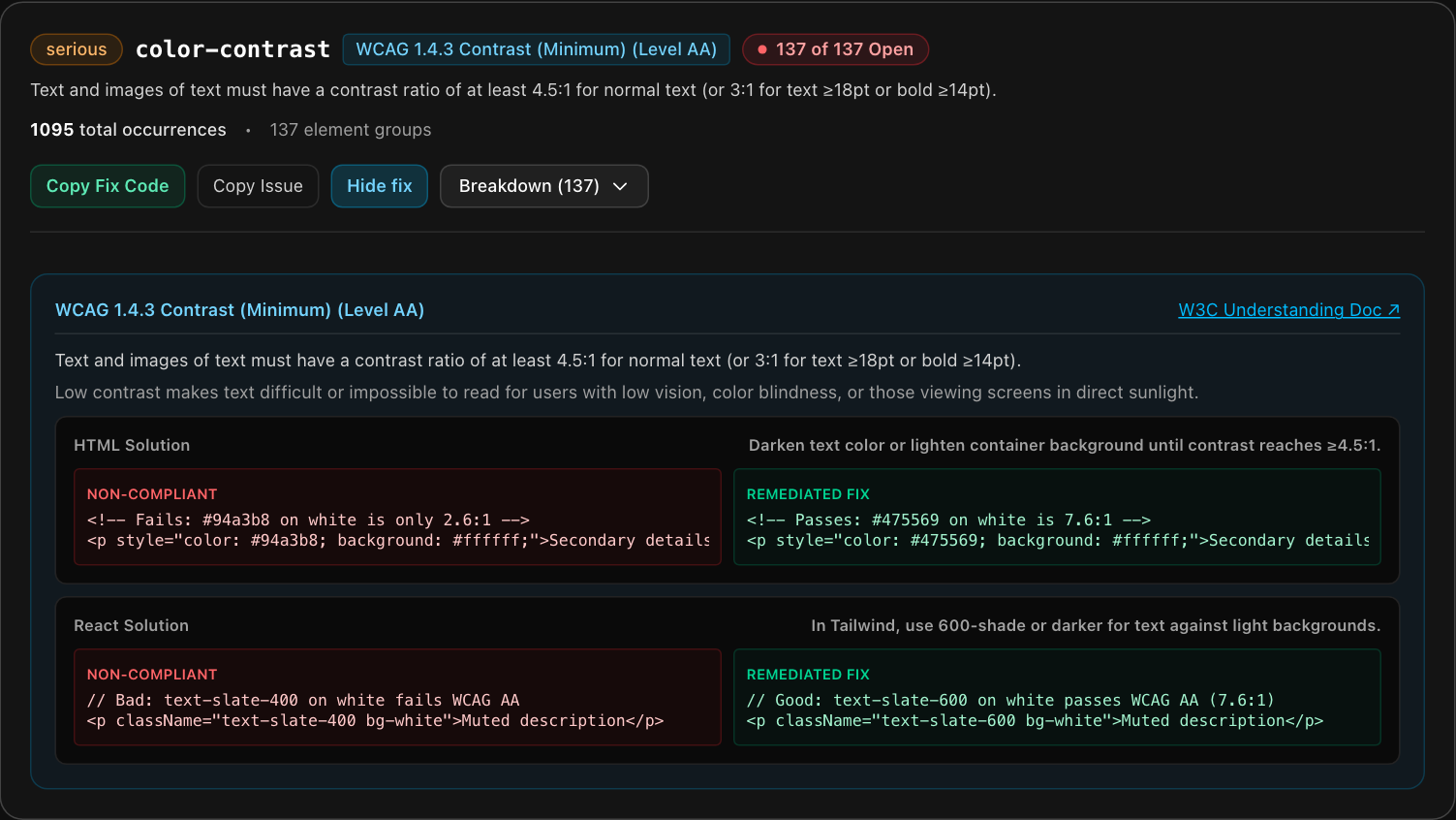
The panel explains:
- Which WCAG criterion the rule relates to, with a link to the W3C's own explanation. Best-practice rules are labeled as such.
- Who is affected and how.
- An example of failing code next to corrected code, in plain HTML and in React where it applies.
Copy Fix Code copies the corrected example to your clipboard. Copy Issue copies a short description you can paste into a ticket. For examples of common rules see how to fix common issues.
Find where it happens
Select Breakdown to see each separate occurrence of the rule.
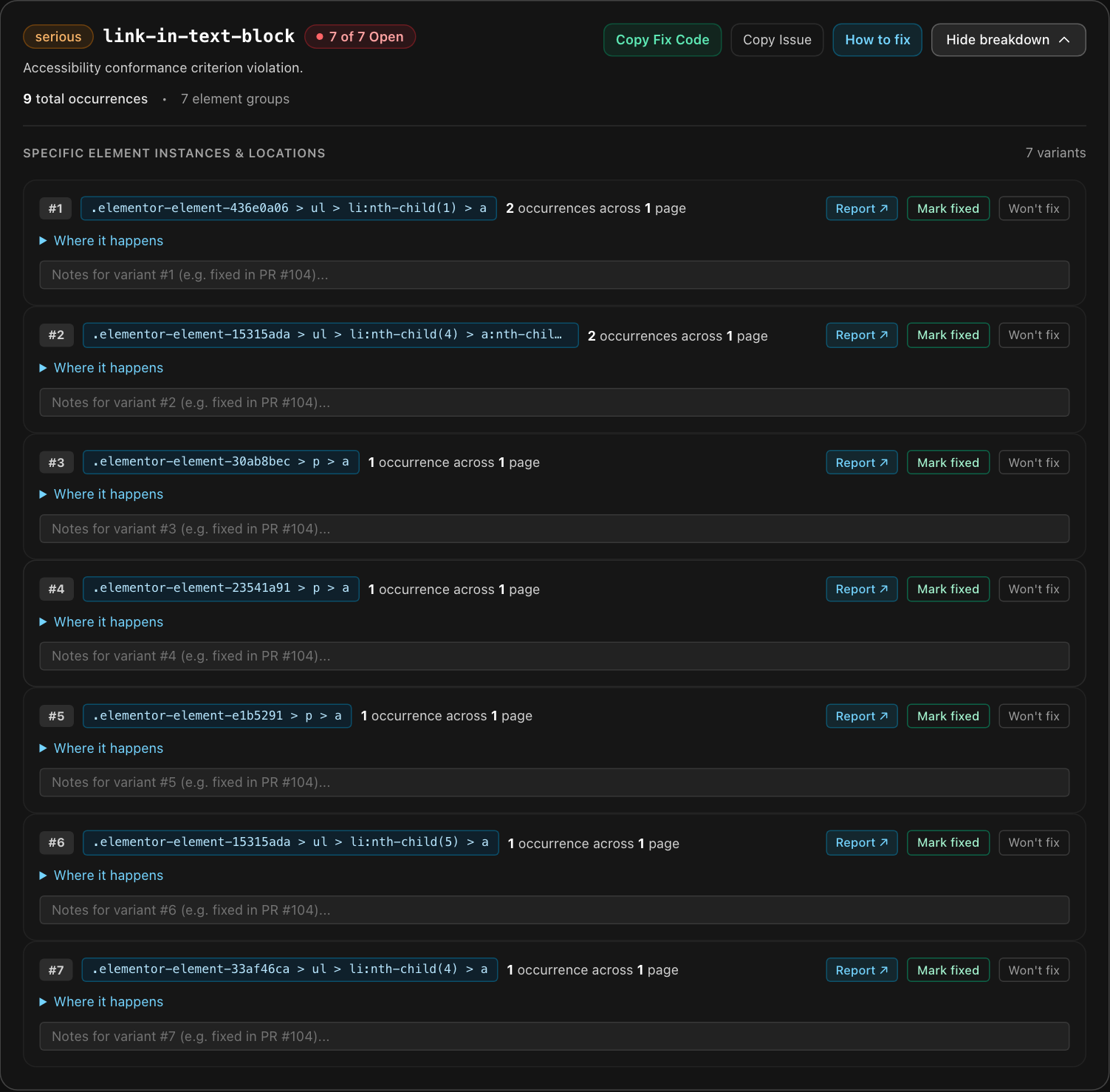
- The highlighted selector identifies the element in your page's code.
- Where it happens expands to show where on your site the element appears.
- Report opens the full report for that scan.
Track your progress
On the Monitor and Pro plans you can record what you decided about each variant:
- Mark fixed when you have shipped a fix.
- Won't fix for an accepted exception, for example third-party content you cannot change.
- Add a short note, such as the pull request number.
Items you mark fixed or won't fix move to the "Resolved" section at the bottom of the list. Marking something fixed records your intention. The proof is the next scan: rescan, then check that the issue no longer appears and that the "fixed" count in the scan history went up. On Pro, team Editors can update statuses as well.
The Resolved section also lists issues that no longer appear. If an issue showed up in any of your last 10 scans and is missing from the latest one, it is listed there with the date it was last found. That means the latest scan did not find it. It does not prove the fix: a scan of different pages, such as a template scan after a full scan, can miss something simply because it did not look there.
Share results with people who do not read code
Three buttons at the top of the Issues tab help you pass results along:
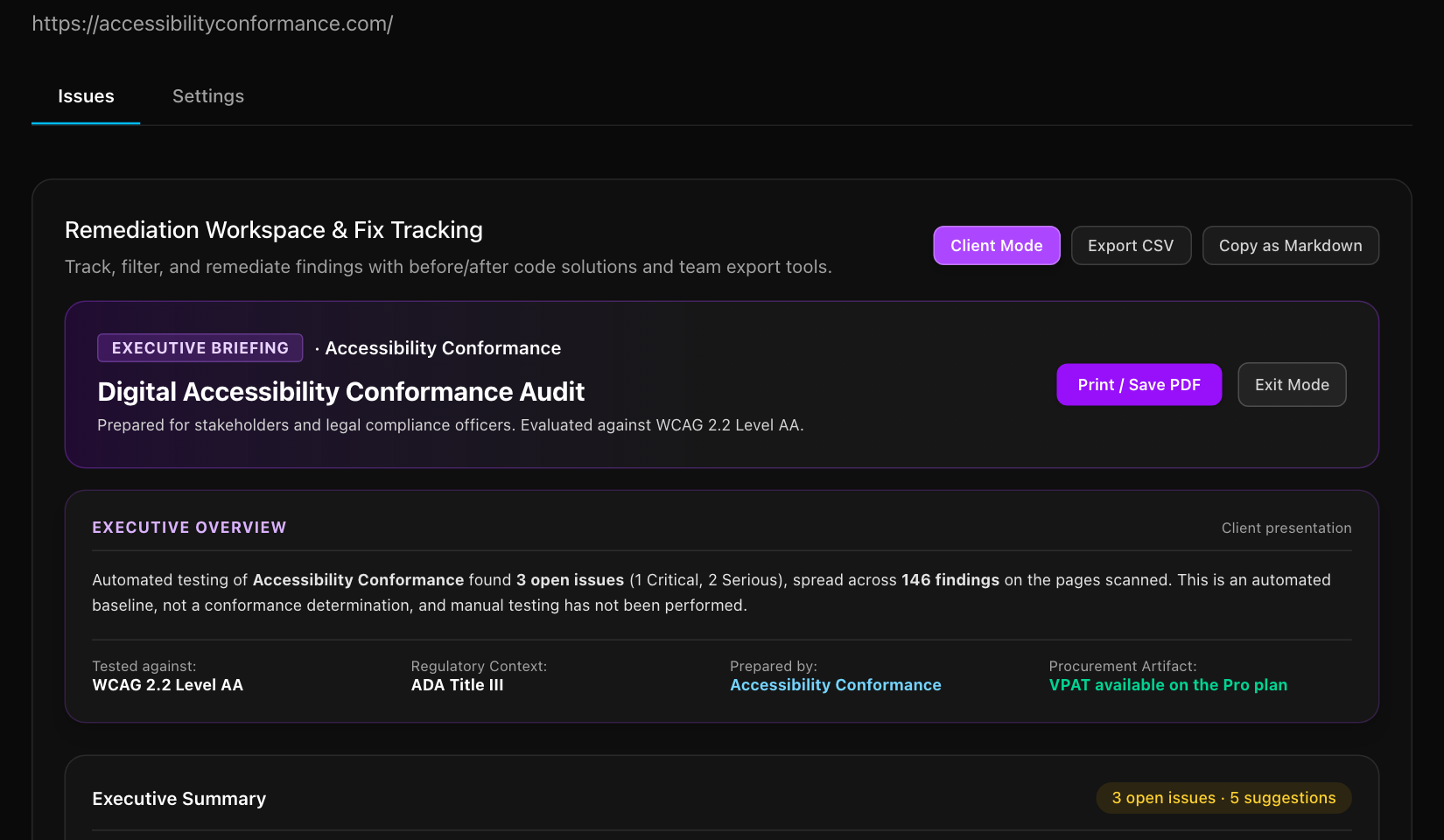
- Client Mode switches to a stakeholder view that hides technical developer detail and adds a plain-language overview. Use Print / Save PDF to keep a copy, then Exit Mode to go back.
- Export CSV downloads the findings for a spreadsheet.
- Copy as Markdown copies the findings in a format that pastes cleanly into GitHub, Jira, Notion or similar tools.
Still stuck? Contact us with your site address and what you expected to happen.